 Bee203
Client Project Portal for interior designers
Selections, approvals, budgets and reports your client can trust
Bee203 Client Project Portal is a private client portal for interior designers. You lay out the rooms, propose each piece with its price, and your client approves or declines in the portal. Every room has its own budget, and you can export a client-safe Budget report or Selections Book as PDF or Excel in one tap. Your cost, vendors and order numbers never appear in anything the client sees.
Start freeWatch the trainingWatch this video on its own page →
Share the project, not your spreadsheets
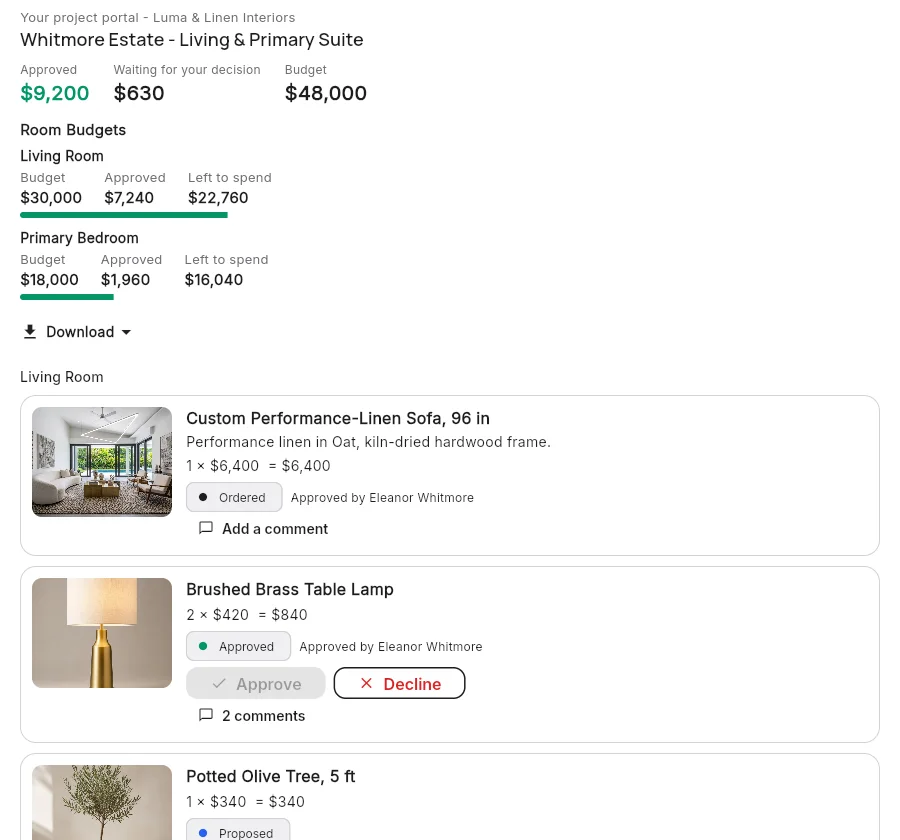
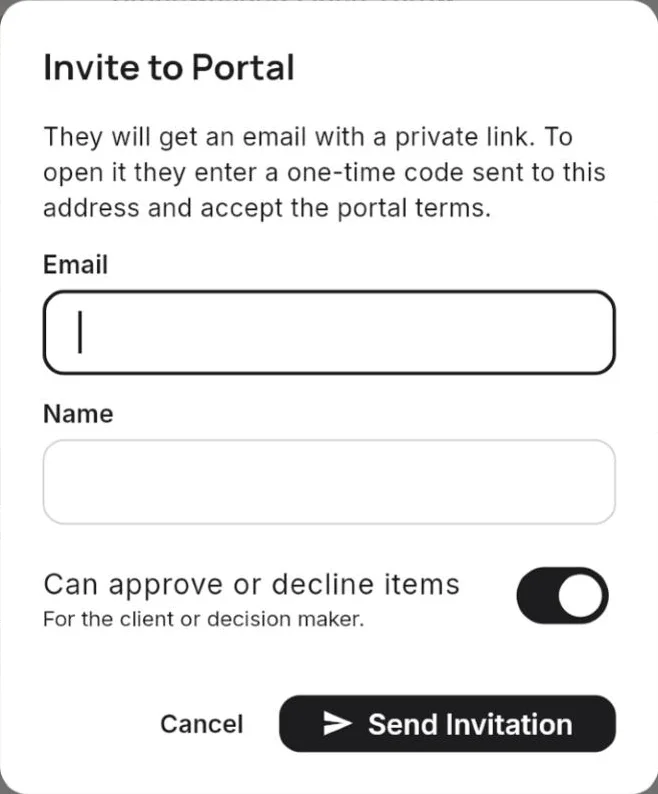
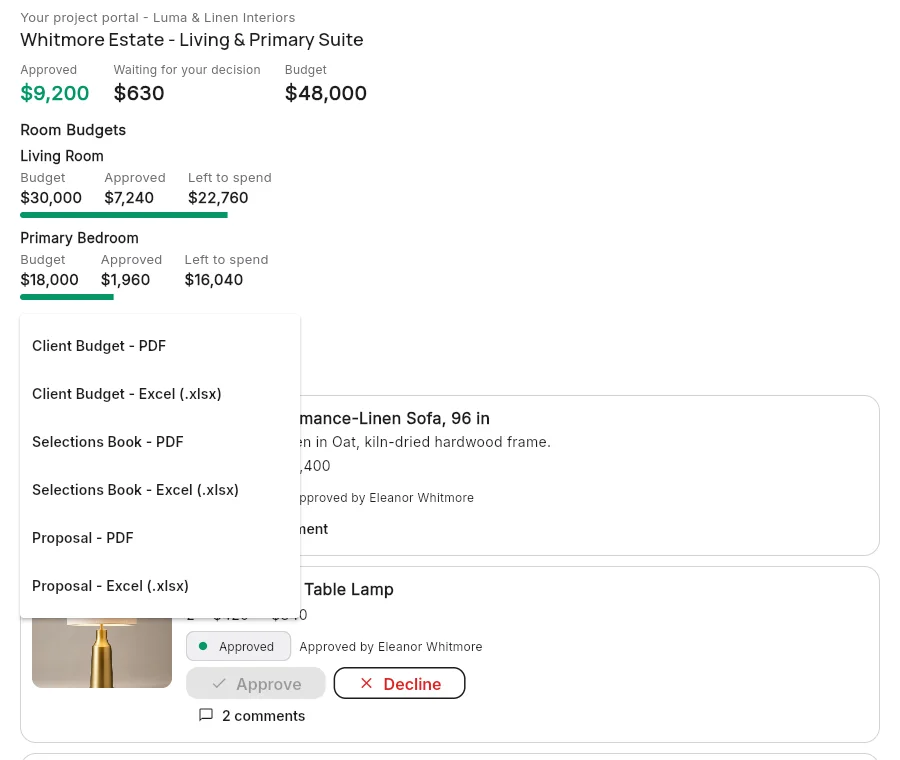
Invite your client to a private portal by email. They sign in with a one-time code, see every room with photos, prices and totals, and approve or decline each item. They can comment and add photos from their phone.
Invite more people as view only, like a hotel purchasing team. Nobody else can open the portal link: only invited people get a code.
- Private portal by invitation
- Approve or decline each item
- Comments and photos
- English and Spanish portal
A budget for every room
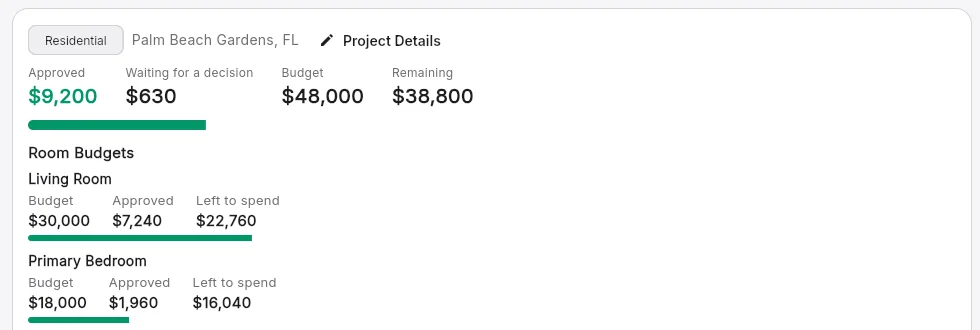
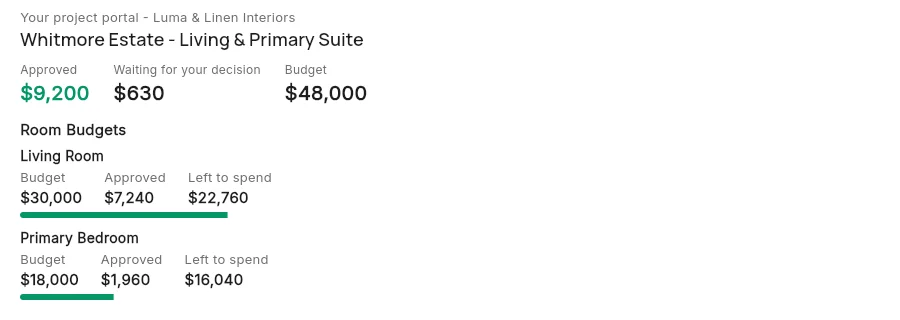
Set a project budget and, if you want, a budget for each room. The project shows approved, waiting for a decision and what is left, and your client sees each room's budget next to what they approved.
For hotels and offices, one room design can repeat, like Guest Room King × 120, and every total multiplies by the number of rooms. If the room budgets do not add up to the project budget, the report says so in plain words.
- Project budget and room budgets
- Approved, waiting and left to spend
- Rooms that repeat (× 120)
- Over budget shown clearly
Reports you can hand to your client
Open Reports from the project menu and export in PDF or Excel:
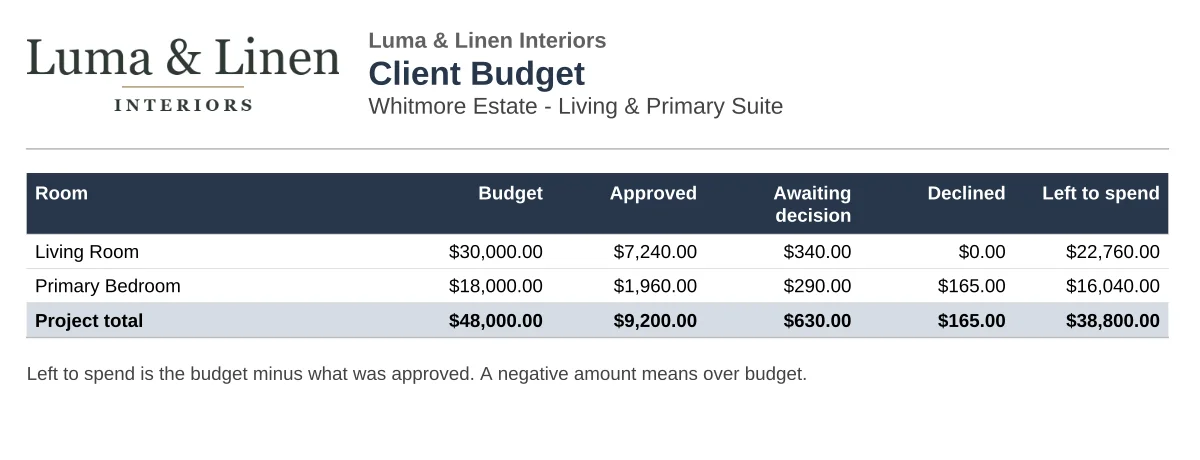
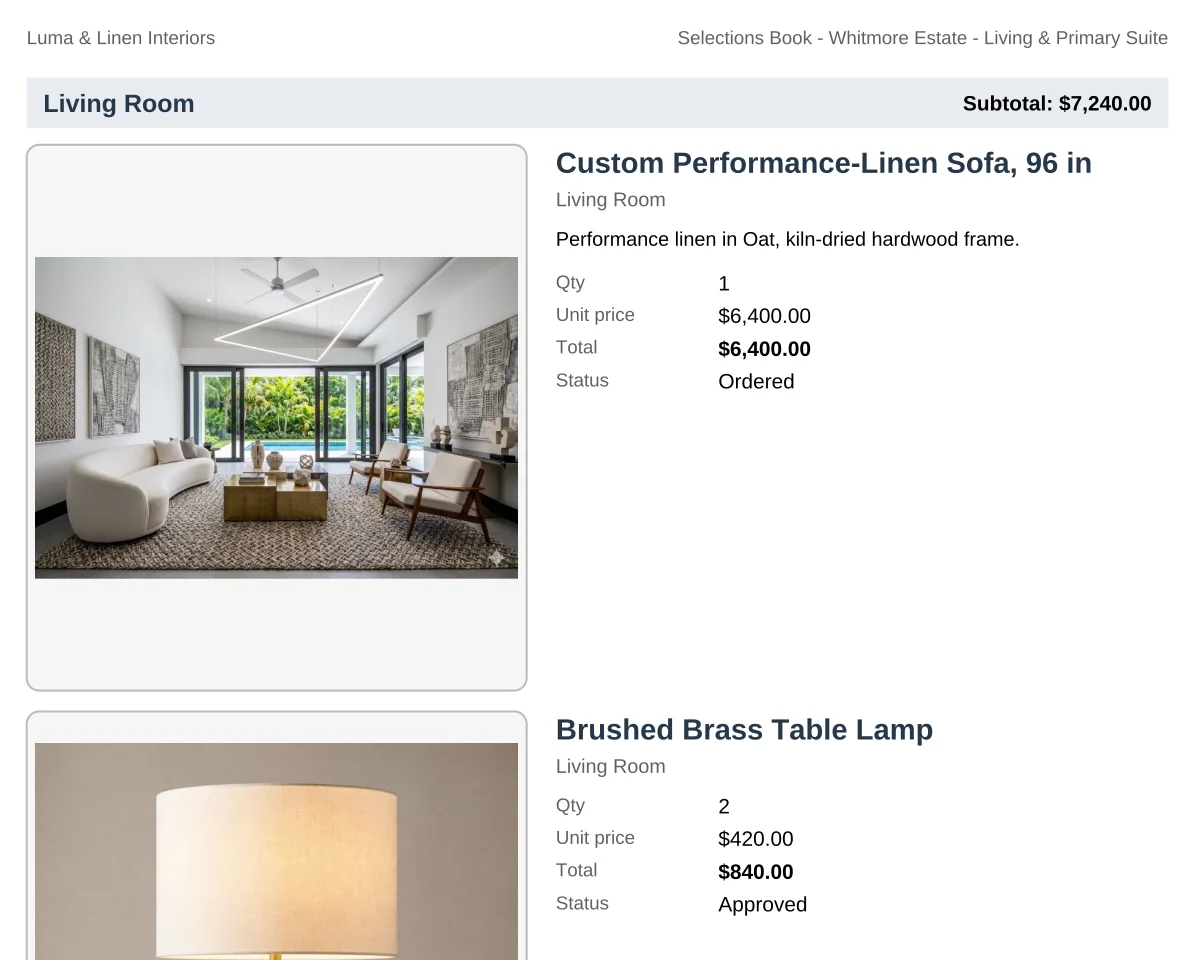
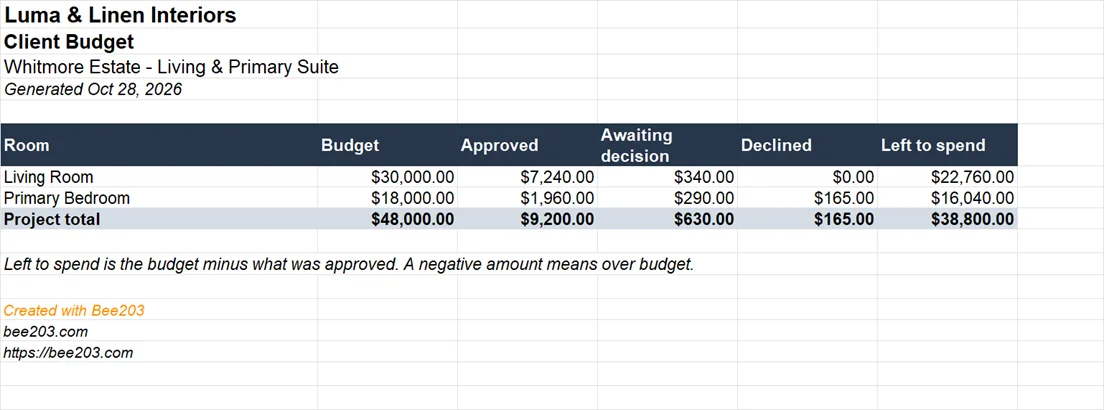
Client Budget: budget, approved, awaiting decision, declined and left to spend, room by room. Selections Book: a spec sheet for every approved item with its photo, description, quantity and price, plus a Proposal version that marks items awaiting a decision. Both are safe to share: no cost, vendor or order numbers.
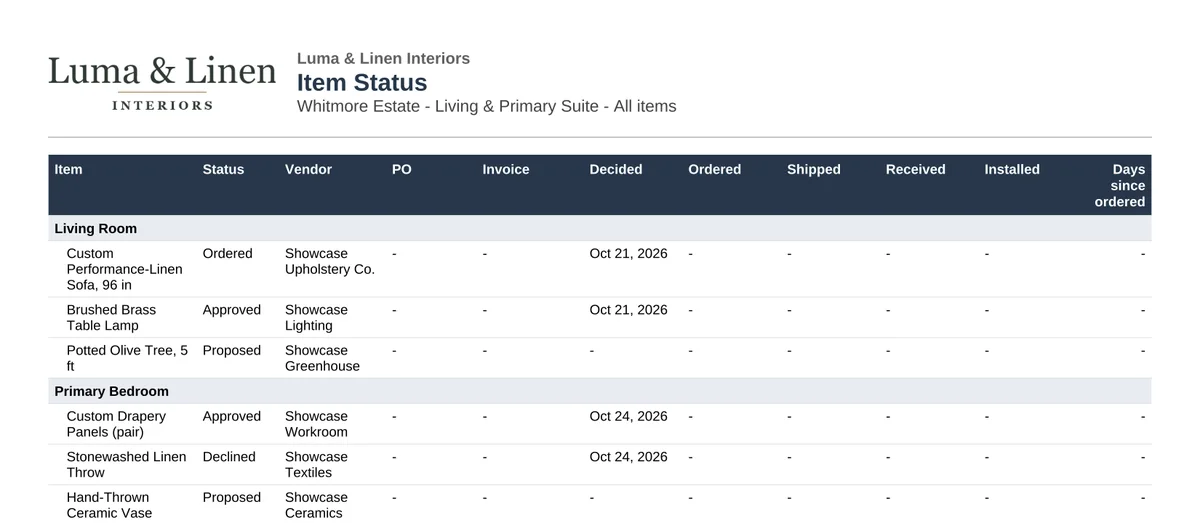
For your team: Item Status (vendor, purchase order, invoice and the date each item reached each step, with filters like ordered but not received) and Job Financials (cost, profit and margin per item and room, deposits, linked expenses and net profit).
Your client can also download the Budget and the Selections Book from their portal.
- Client Budget (PDF, Excel)
- Selections Book and Proposal
- Item Status for chasing vendors
- Job Financials, team only

From approval to invoice to purchase order
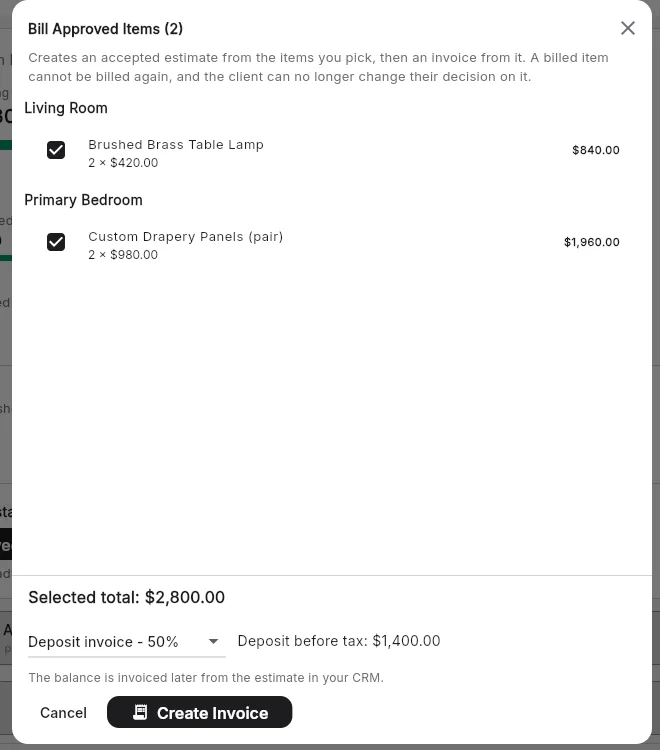
When items are approved, tap Bill Approved Items. Bee203 creates an accepted estimate and an invoice in your CRM, as a deposit (a percentage you choose) or the full amount. A billed item is locked for the client.
Then Order from Vendors makes one draft purchase order per vendor at your cost, never at the client price, and nothing is sent until you send it (purchase orders are on the Business plan).
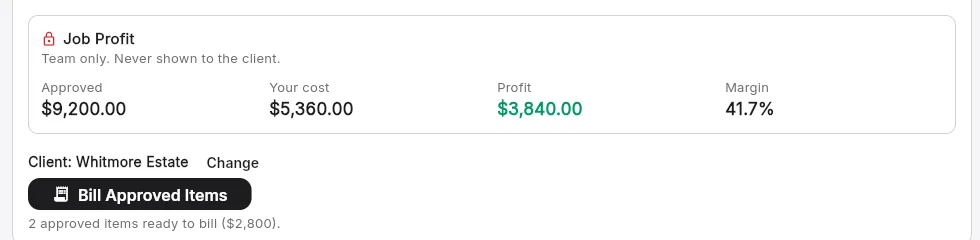
The team-only Job Profit card shows approved, your cost, profit and margin. Link Expenses adds business expenses and vendor bills to the project so the job profit is real.
- Deposit or full invoice
- Draft purchase orders per vendor
- Job Profit, team only
- Link expenses and vendor bills
Track every item to installed
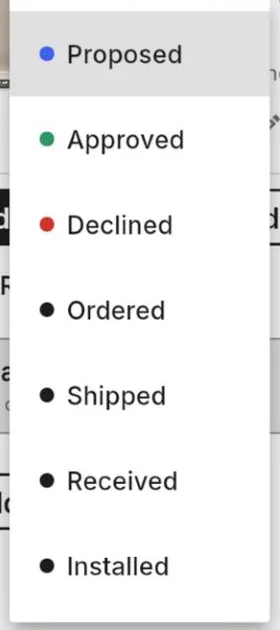
Each item moves through Proposed, Approved, Declined, Ordered, Shipped, Received and Installed, and Bee203 records the date it reached each step. Your client can only approve or decline; ordered and after is yours.
- Seven statuses
- Dates for every step
- Locked once ordered or billed
Private by design
Your cost, vendor, SKU and purchase orders never reach the client: client reports are built only from what the client is allowed to see. Location data is removed from photos, property photos start team-only, and downloads for invited people are off until you turn them on.
- Client reports never show cost or vendors
- Location data removed from photos
- Team-only photos and notes
How it works in 6 steps
- Add the Client Project Portal template and create a project for the client job.
- Lay out the rooms and set the project and room budgets.
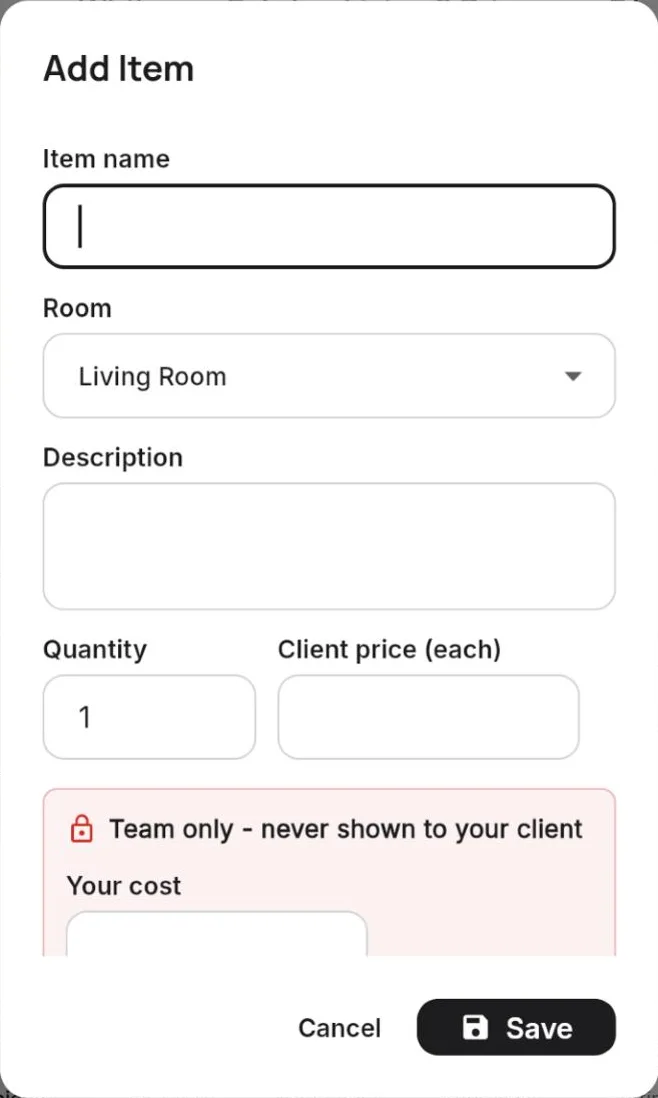
- Add each item with the client price; your cost and vendor stay team-only.
- Invite your client; they approve or decline in the portal.
- Bill approved items as a deposit or full invoice, then order from vendors.
- Export the Client Budget or Selections Book and share it.
Questions designers ask
What is a client portal for interior designers?
A private web page where your client sees the project you prepared: rooms, items, photos, prices and totals. In Bee203 the client approves or declines each item there, comments, and downloads the budget and selections book.
Can my client see my cost or my vendors?
No. Cost, vendor, SKU and purchase order numbers are team-only. The client reports (Client Budget and Selections Book) are built without those fields.
Can I set a budget per room?
Yes. Each room can have its own budget, and your client sees it next to what they approved. The project budget and the room budgets are shown separately.
Which reports can I export?
Client Budget, Selections Book (approved items or a Proposal that includes items awaiting a decision), Item Status and Job Financials, in PDF or Excel.
Does it create the invoice?
Yes. Bill Approved Items creates an accepted estimate and an invoice in your Bee203 CRM, for a deposit percentage or the full amount.
Is it in Spanish?
Yes. The app, the portal and the reports work in English and Spanish, and a Spanish invitation opens the portal in Spanish.
How many projects can I run?
Free and Starter include one active portal project at a time. Pro and Business are unlimited.