 Bee203
Client Project Portal
Selections, approvals and order tracking
A step-by-step guide for interior designers. Watch the video or read the steps below. Every screen is from the live app.
This free training shows interior designers how to use the Bee203 Client Project Portal step by step: create a project, lay out the rooms, propose items with prices, invite your client to approve or decline in a private portal, and track every order from ordered to installed. Your cost and vendors stay private.
See everything the Client Project Portal does: budgets, reports and invoices
1What the client portal is
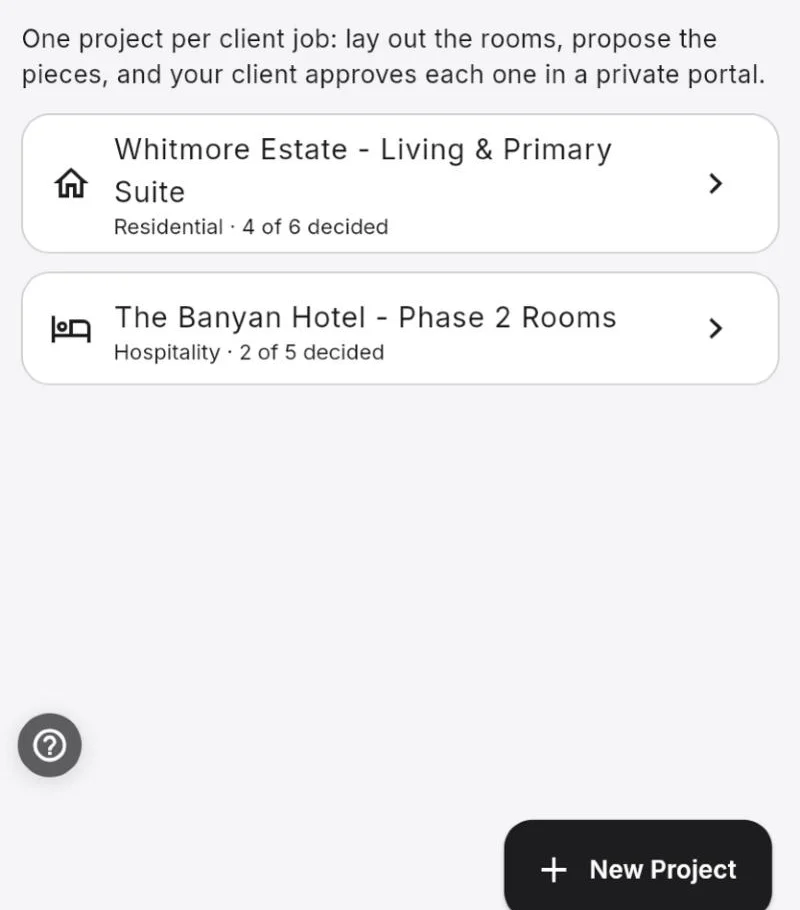
Client Project Portal (selections, approvals and order tracking) is a Bee203 template for interior designers. You make one project per client job, lay out the rooms, and propose the pieces. Your client opens a private portal and approves or declines each one.
You both see the running total of what was approved, and you follow each item from ordered to installed. No more decisions lost in texts and emails.
It is a good fit for designers who buy through the Bee203 trade program, but it works on its own. It is not tied to trade pricing or catalog orders.
2Turn it on and start a project
Add the Client Project Portal template from Templates or from the Setup Wizard. Any plan can use it.
Open Client Project Portal from your Business Menu and tap New Project. You can also tap Start a Selections Project on a client's profile in your CRM, so the project is linked to that client.
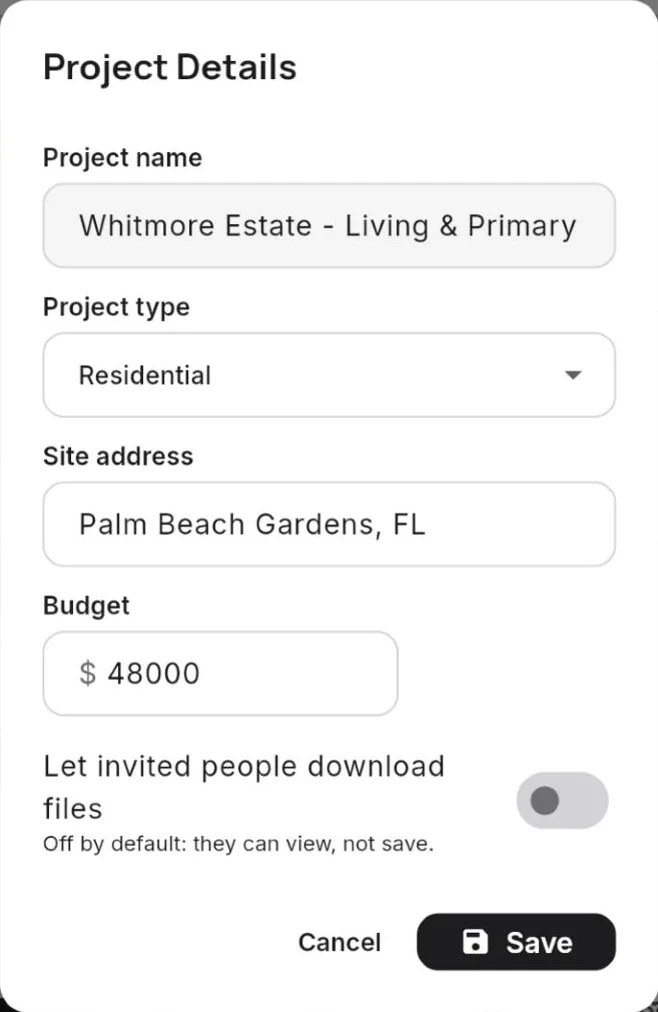
Give the project a name, a type (Residential, Hospitality, Commercial or Other), the site address and the budget.
Plans: Free and Starter include one active project at a time. Archive a project to start another. Pro and Business have unlimited projects.
3Lay out the rooms
Start with a ready list and change it any time: Home (Living Room, Dining Room, Kitchen, Primary Bedroom and more), Hotel (Lobby, Guest Room King, Suite and more) or Office / Commercial. Or add your own rooms.
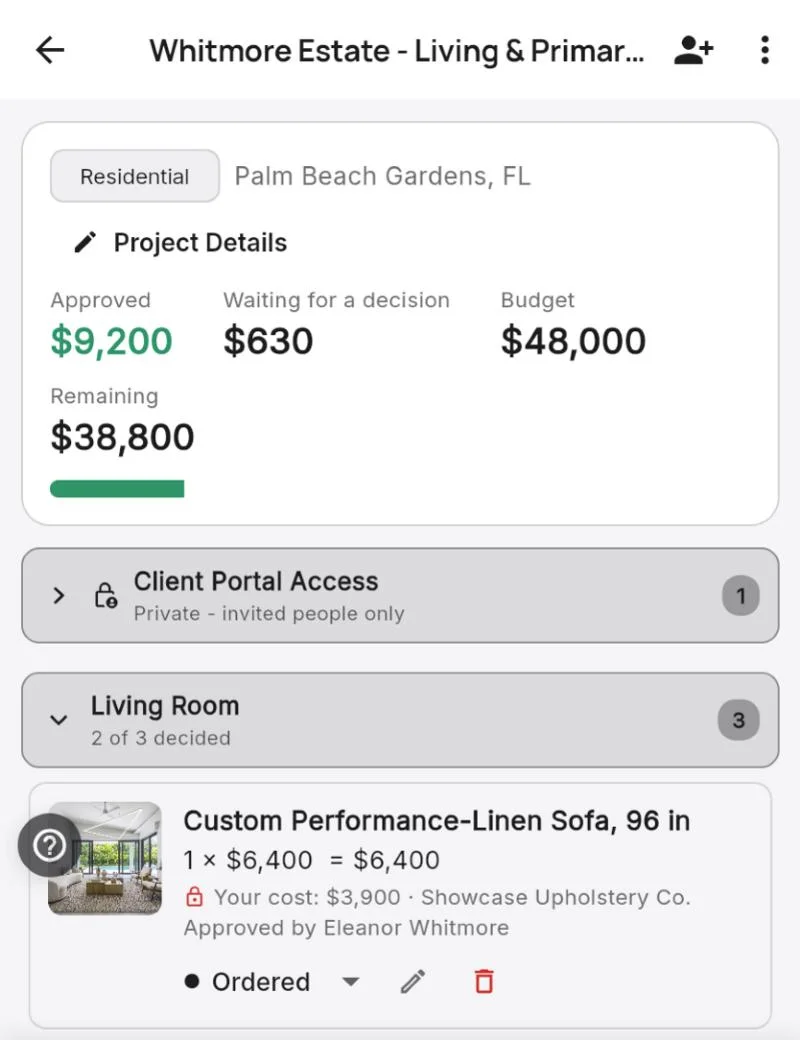
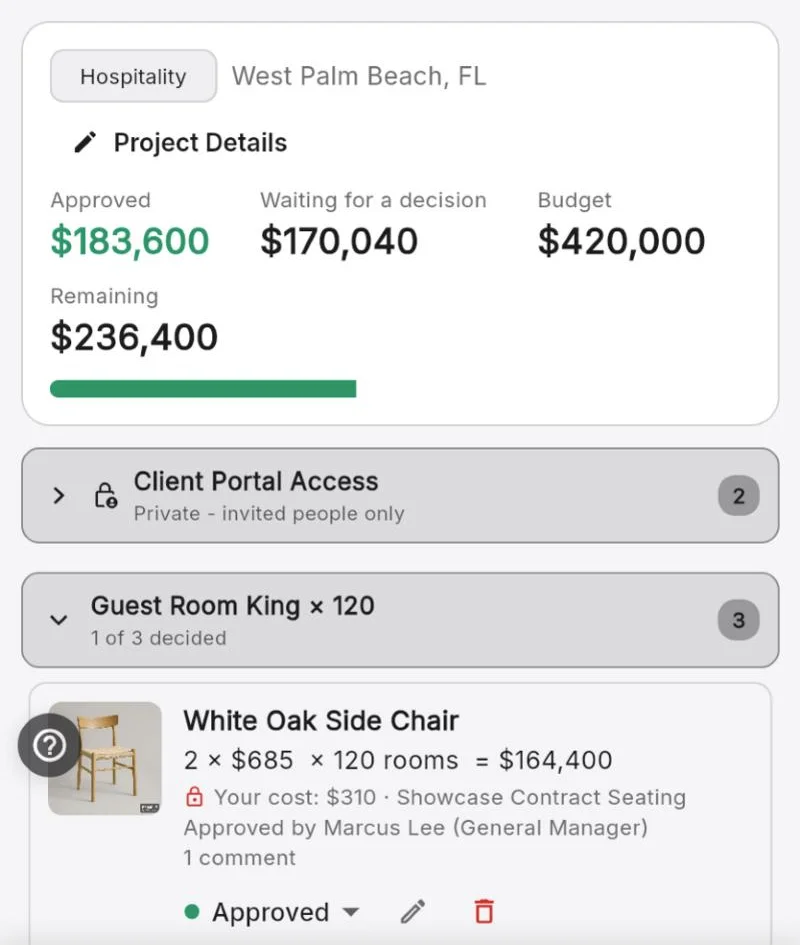
For hotels and offices, one room design can repeat. Set How many of this room?, for example Guest Room King × 120, and every item total multiplies by that number.
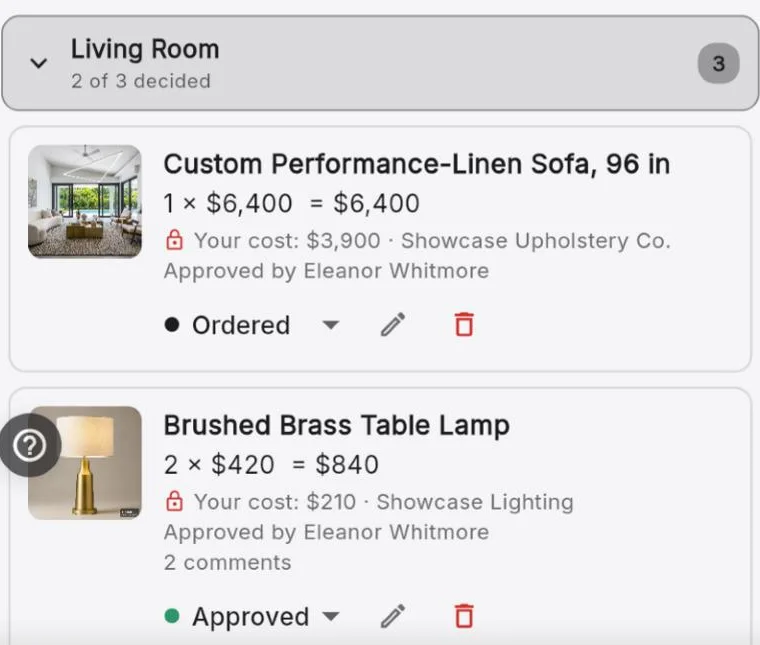
Each room shows how many items are decided, for example "1 of 3 decided".
4Propose the pieces
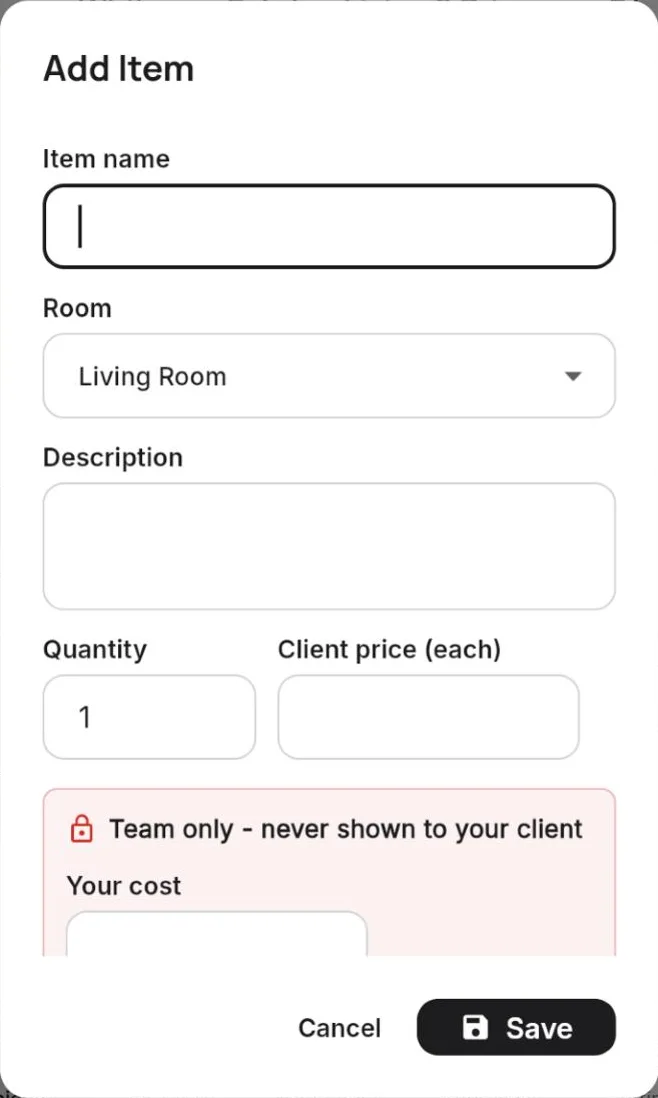
Tap Add Item in a room. Fill in the name, room, description, quantity and the client price for each one. Add a product photo link if you have one.
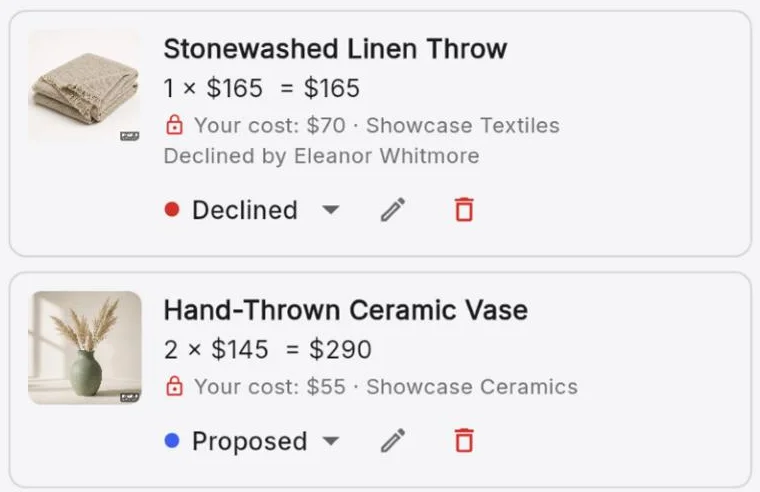
The red Team only box holds your cost, vendor and SKU. It is never shown to your client.
Show to client lets you keep an option to yourself until it is ready.
5Watch the budget
The top of every project shows Approved, Waiting for a decision, Budget and Remaining, with a bar. If approvals pass the budget, the project shows how much it is over.
Approved counts everything your client said yes to, including items already ordered, shipped, received or installed.
6Invite your client
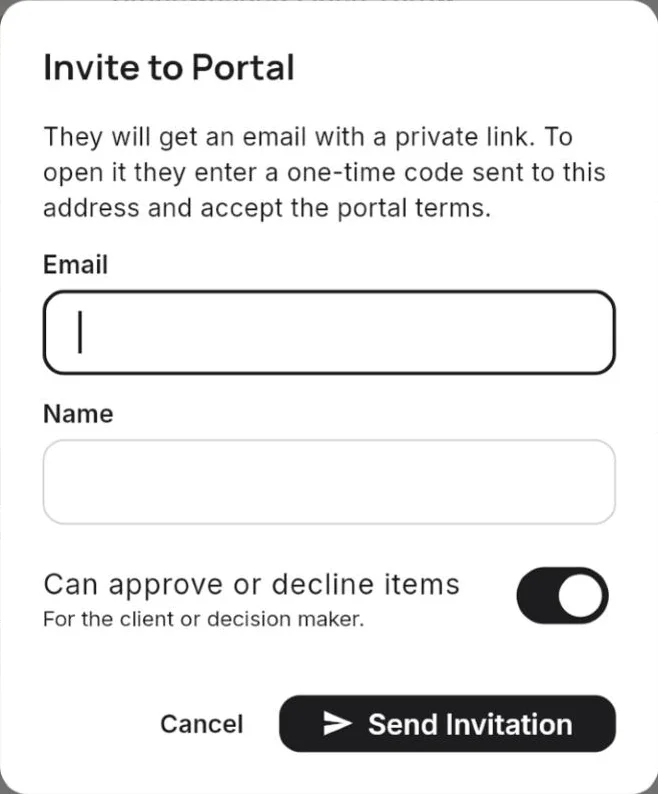
Tap the Invite to Portal icon at the top of the project. The first time, you confirm a short checklist: you have your client's permission, you are responsible for what you upload and show (never passwords or door-lock codes), you remove a client's information when asked, and Bee203 only provides the software.
Enter the person's email and name. Leave Can approve or decline items on for the client or decision maker. Turn it off for people who should only look and comment, like a purchasing team.
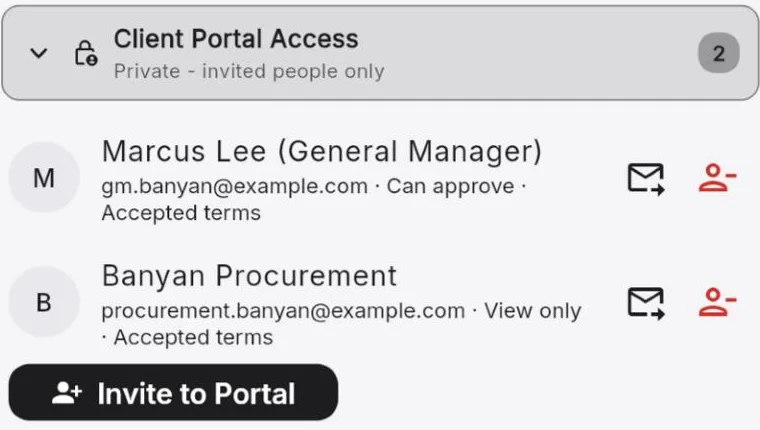
Open Client Portal Access to see who is invited and whether they accepted the terms. You can resend an invitation or remove someone. Removal is immediate; what they uploaded and approved stays in the project.
There is a daily limit on invitation emails. If you reach it, try again the next day.
7What your client sees and does
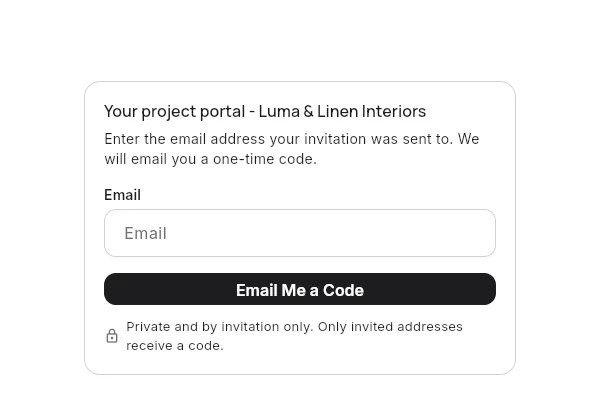
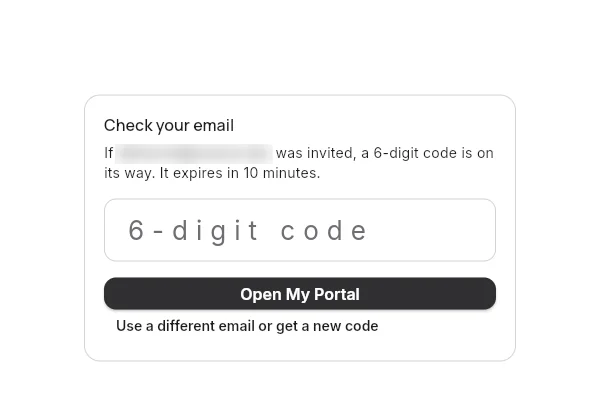
Your client gets an email with a private link. They enter their email, receive a 6-digit code that expires in 10 minutes, and accept the Portal Terms of Use. Invitations sent in Spanish open the portal in Spanish.
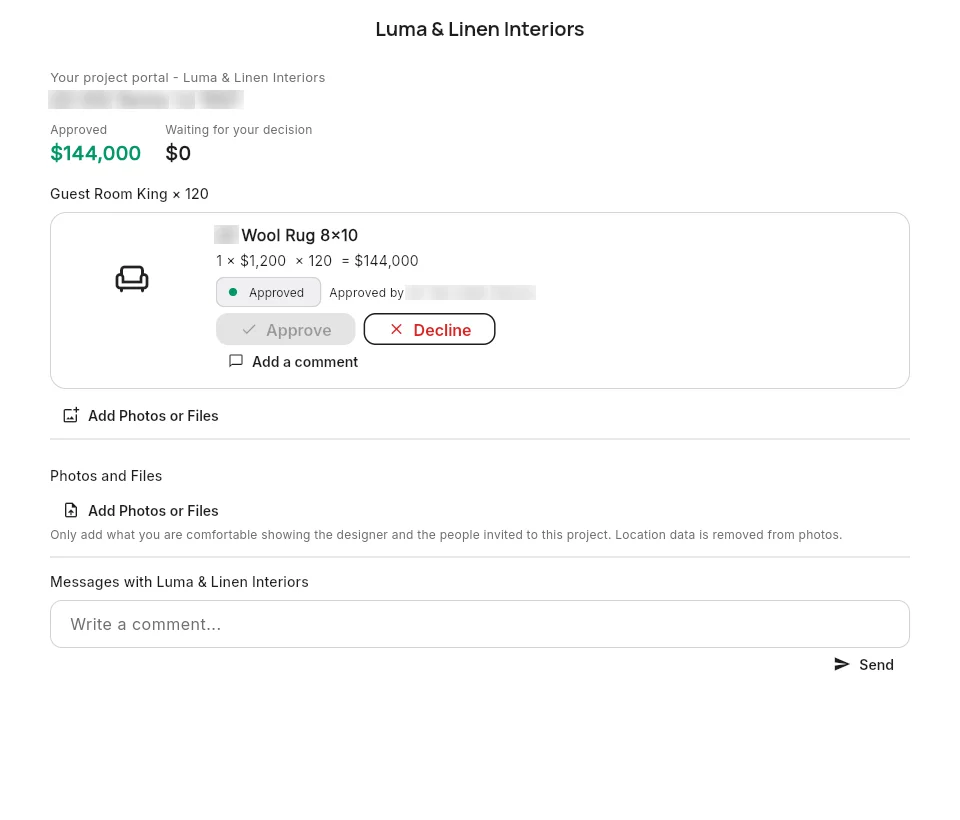
They see the rooms and items with price and quantity, and the running totals. They never see your cost, vendor or SKU, or photos you keep for your team.
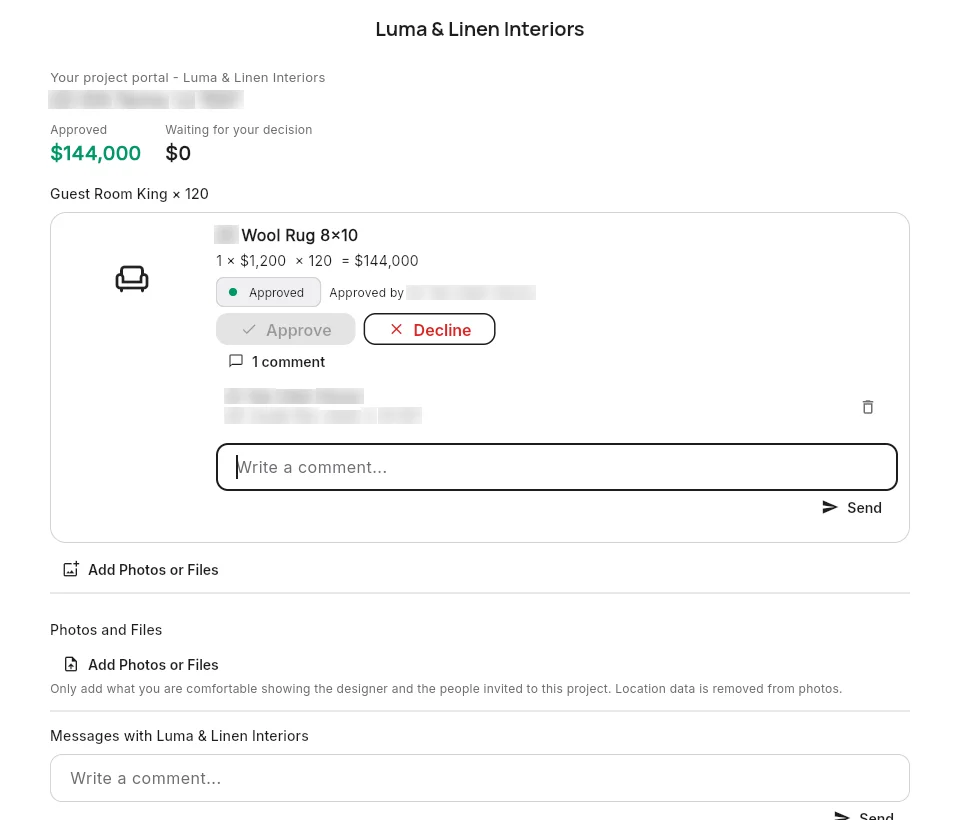
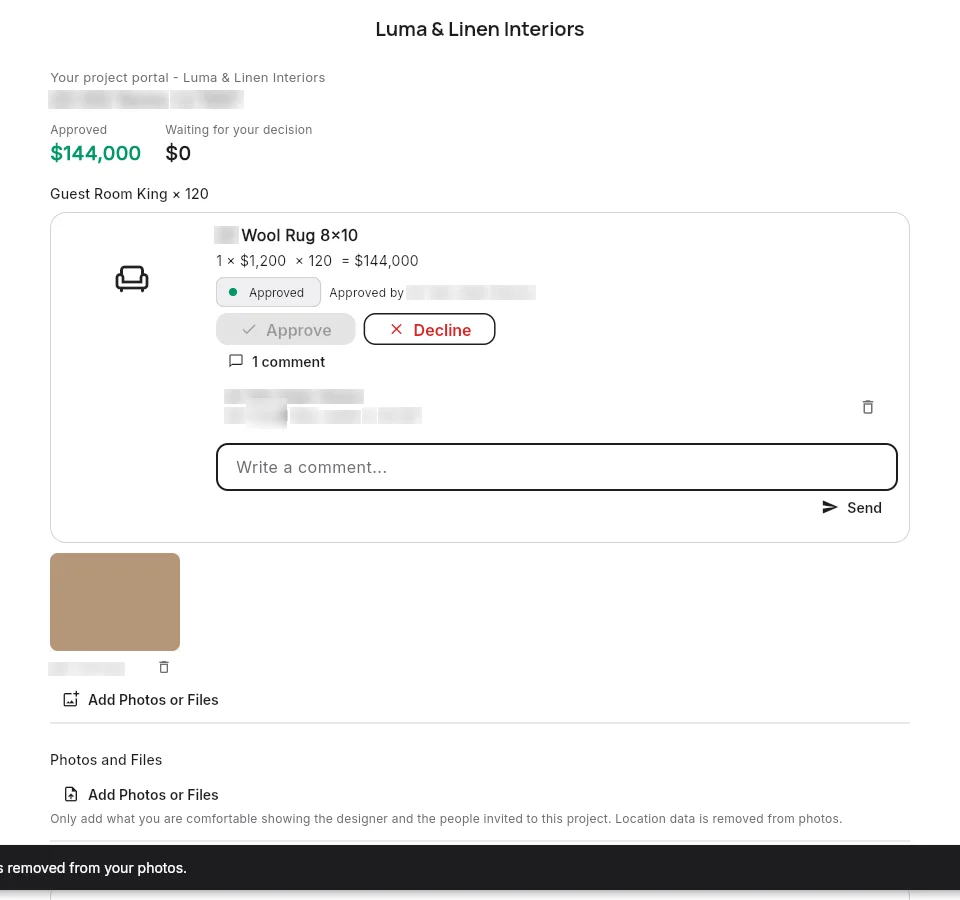
If they can approve, they tap Approve or Decline on each item. They can comment and add photos or files. Location data is removed from their photos. They can delete only their own uploads, and can restore them for 30 days.
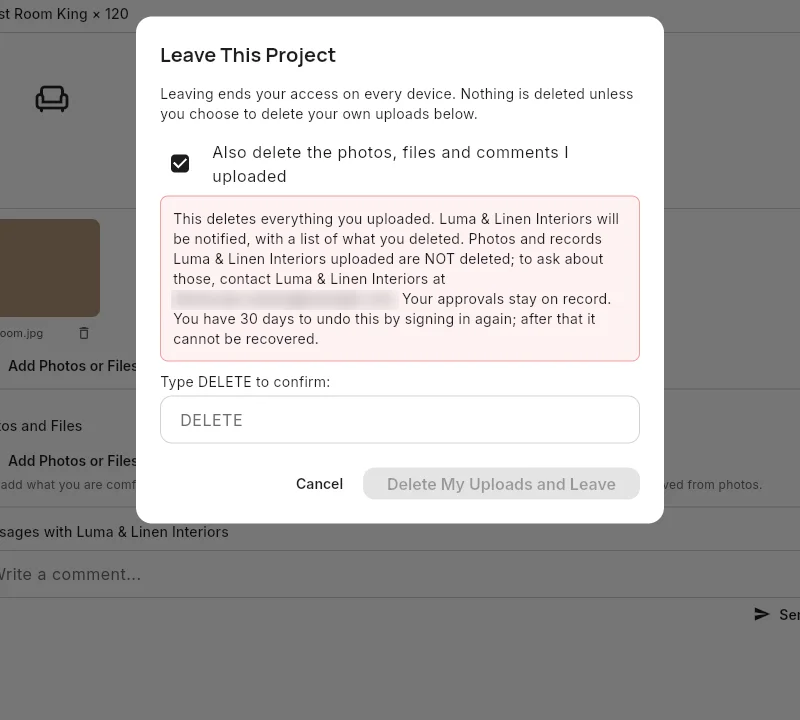
On their own device they can Sign Out, or Leave This Project. When they leave, they can choose to delete their own uploads, and you are notified.
8Track every item to installed
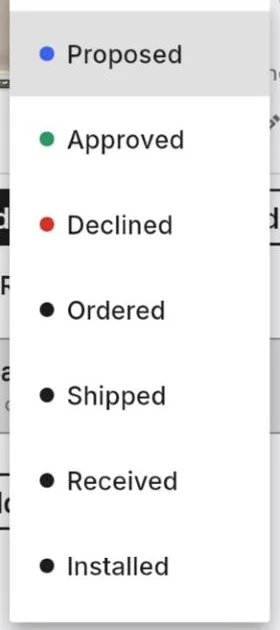
Each item has a status: Proposed, Approved, Declined, Ordered, Shipped, Received, Installed. Change it from the menu on the item.
Your client can only approve or decline. Ordered and after are yours, and once an item is ordered your client can no longer change it.
Each item shows who approved or declined it and how many comments it has.
9Photos, files and privacy
Tap Add Photos or Files in a room or in the project. Location and camera data are removed from photos when they upload.
Property photos start as Team only. Tap a photo's lock to show it to your client.
In Project Details, Let invited people download files is off by default: invited people can view files but not save them.
10Finish or archive a project
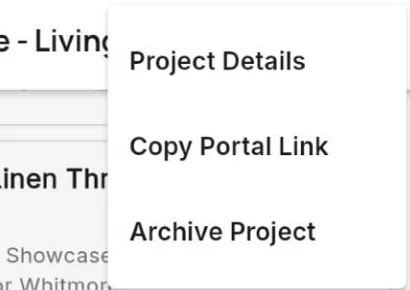
The menu at the top of a project has Project Details, Copy Portal Link and Archive Project.
The portal link opens nothing by itself: only invited people get a sign-in code.
When you archive a project, your client can no longer open it. You can reopen it from the menu. On Free and Starter, archiving frees your active project so you can start the next one.
Training questions
How long does it take to set up a client project?
A few minutes: create the project, pick a starting list of rooms, add items and invite your client. The video walks through it in about 3 minutes.
Does my client need an account?
No. Your client gets an email with a private link and signs in with a one-time 6-digit code.
Can my client see my cost?
No. Your cost, vendor and SKU are in a Team only box and never reach the client.
Is there a Spanish version?
Yes. This training, the app and the portal are in English and Spanish.