 Bee203
Jobs, budgets and project management
For owners, admins, project managers and technicians
A step-by-step guide. Every step opens the same screen in the live demo, as the owner, the project manager or a technician.
This free training shows you how to run jobs in Bee203 step by step: give your team their roles, create a job with its budget, project manager and crew, watch the budget against what the job really costs, plan the crew's week, close the punch list and invoice the job. Every step has a button that opens the same screen in the live demo, as the owner, the project manager or a technician.
1The Operations Dashboard
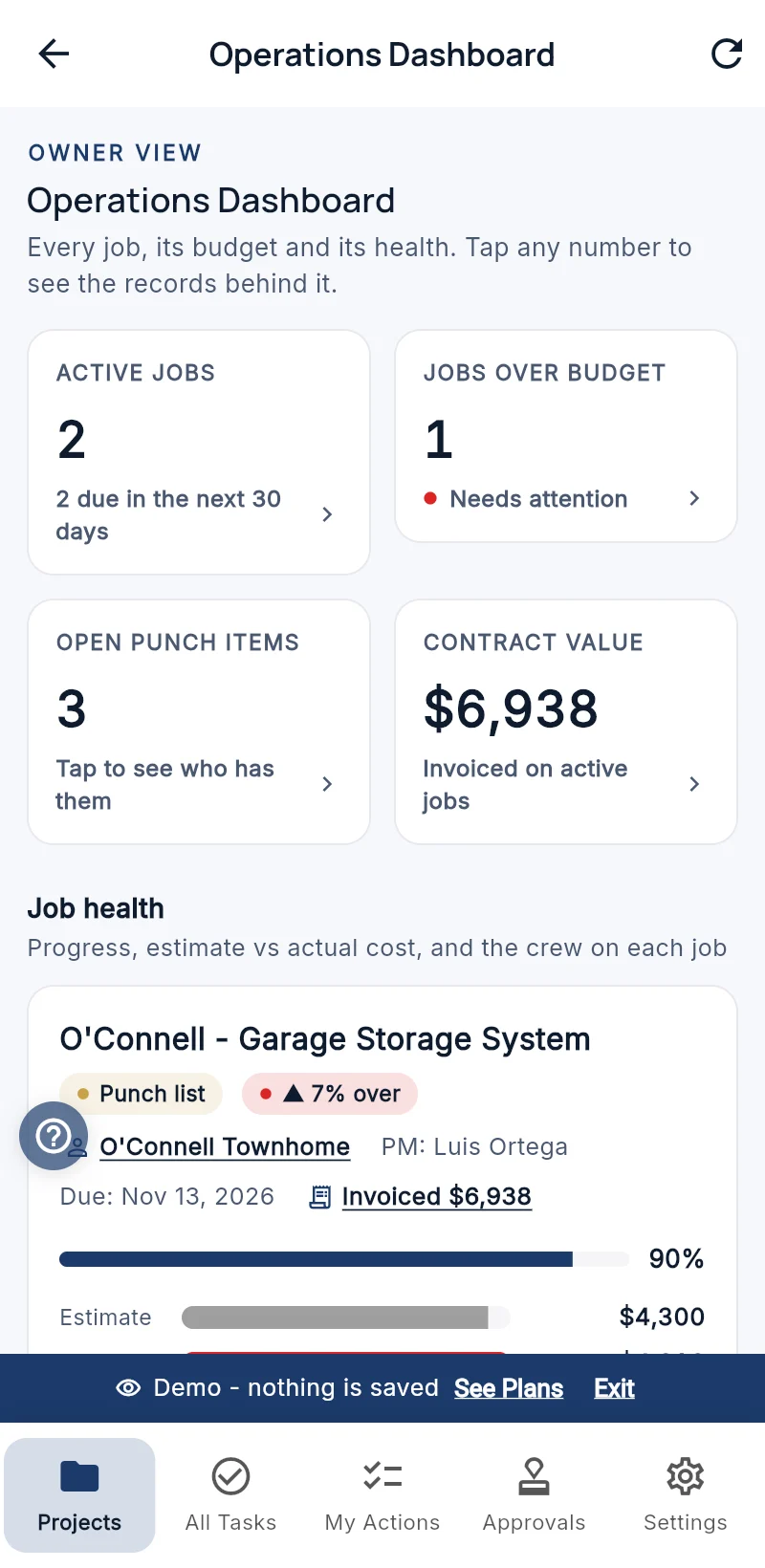
Open the Business Menu and tap Operations Dashboard. It is the one screen for the people who run the work: every job with its budget against what it has really cost, the crew this week, the open punch items and what changed lately.
The tiles at the top count your Active jobs, the Jobs over budget, the Open punch items and the Contract value. Tap any number to open the records behind it.
Plans: the Operations Dashboard is on every plan.
Open it in the live demo as the owner →
2Give your team their roles
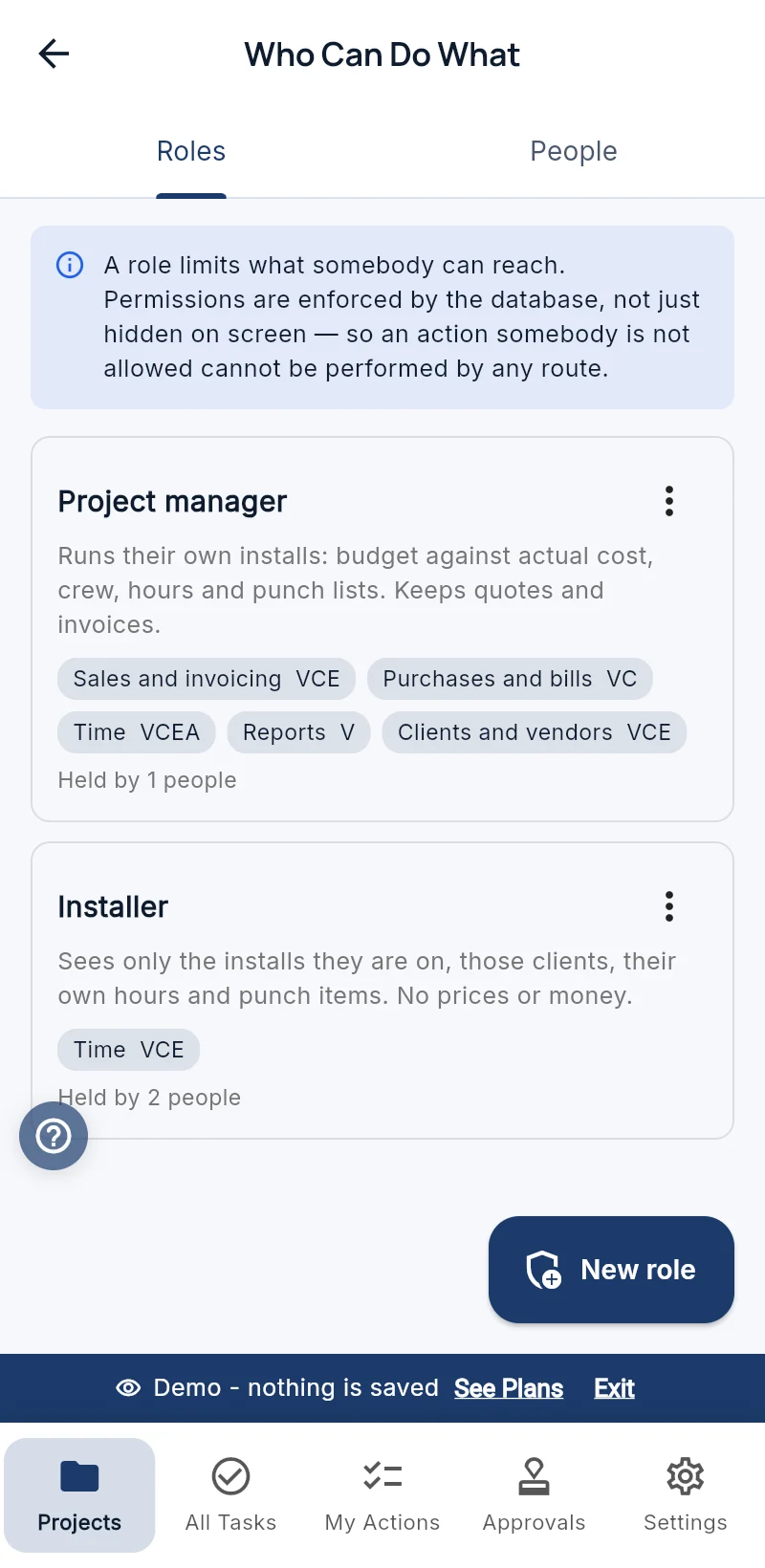
Invite your people first. Then open Accounting from the Business Menu and tap Who Can Do What. You can also ask Help (the ?) for "who can do what".
Tap New role and, under Start from, pick Project manager or Technician. The role already knows what that person may see. Give it a name your team uses, such as "Installer".
Which jobs they see decides the jobs: All jobs, Jobs they manage or work on (a project manager) or Only jobs they are assigned to (a technician). Can see vendor cost turns your cost on or off for that role.
On the People tab, give each person their role. The database enforces it: a technician cannot open a job they are not on, even with a link.
3Create a job
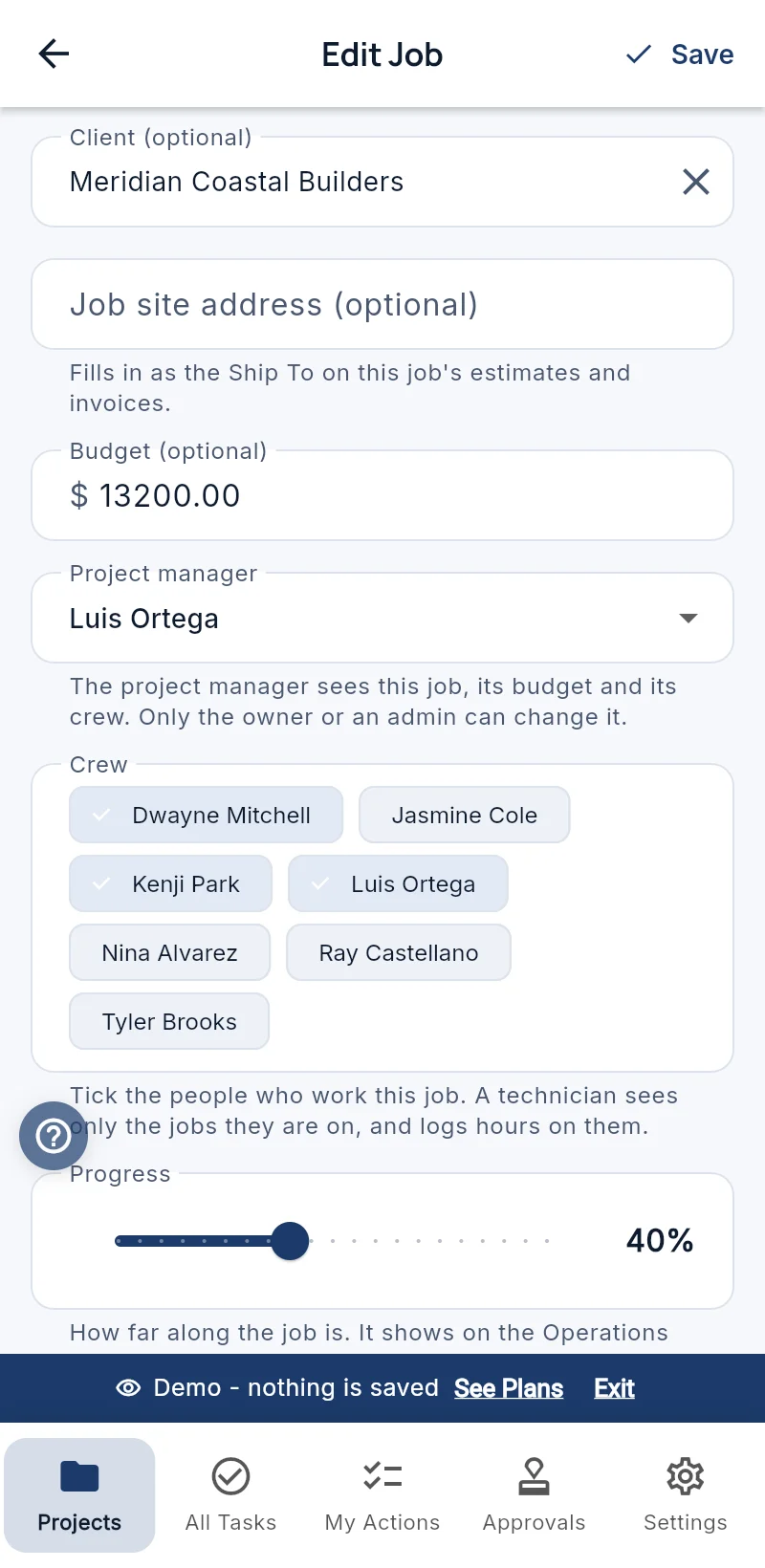
On the Operations Dashboard, tap Active jobs to open your jobs, then tap + and Add Job. Or open the client in your CRM and tap New Job in their Jobs, so the job is already tied to that client.
Fill in:
- Job Name and the Client.
- Job site address: it fills in on the job's documents.
- Budget: what the job should cost you. This is the line the actual cost is measured against.
- Project manager: the one person who runs it. Only the owner or an admin can choose or change it.
- Crew: tick everyone who works the job. A technician sees only the jobs they are on, and logs hours only on those.
- Progress: how far along it is, from 0 to 100%. Move it as the work goes.
- Due Date.
4Budget against actual cost
The actual cost of a job adds up by itself from three places:
- Hours: on the job, tap Add Time Entry. Each person's hours times their rate is the labor cost. Your crew can log their own hours from their phone.
- Receipts: tap Add Receipt on the job, take a photo or pick one already uploaded.
- Expenses and vendor bills: choose the job in Job (optional) when you enter them.
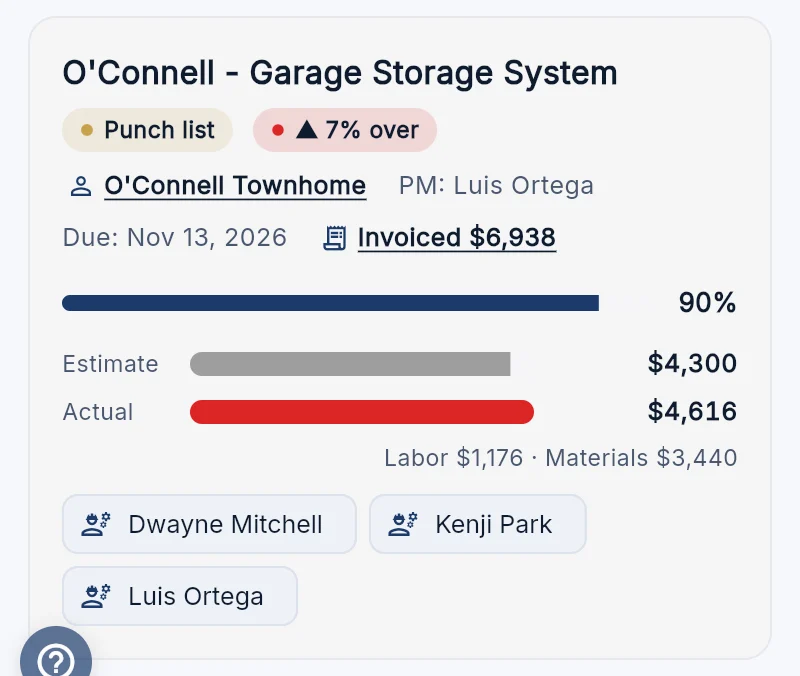
On the Operations Dashboard each job shows its Estimate against its Actual, labor and materials apart, and a flag: On budget, or how many percent over. A job more than 3% over its budget counts as over, so you see it while there is still time to fix it.
Job Profitability (in Accounting) adds what each job was invoiced and the margin that was left, with Money, Hours and Budget views. Plans: Job Profitability is on the Business plan.
Open Job Profitability in the live demo →
5Plan the crew's week
The crew schedule is your Team To-Do. Add a task for each visit, give it the day and the person, and it shows under Crew this week on the Operations Dashboard, one row per person.
Tap a person to see all their tasks. The same visits are on the Calendar, and each person sees their own in My Tasks on their phone.
6The punch list
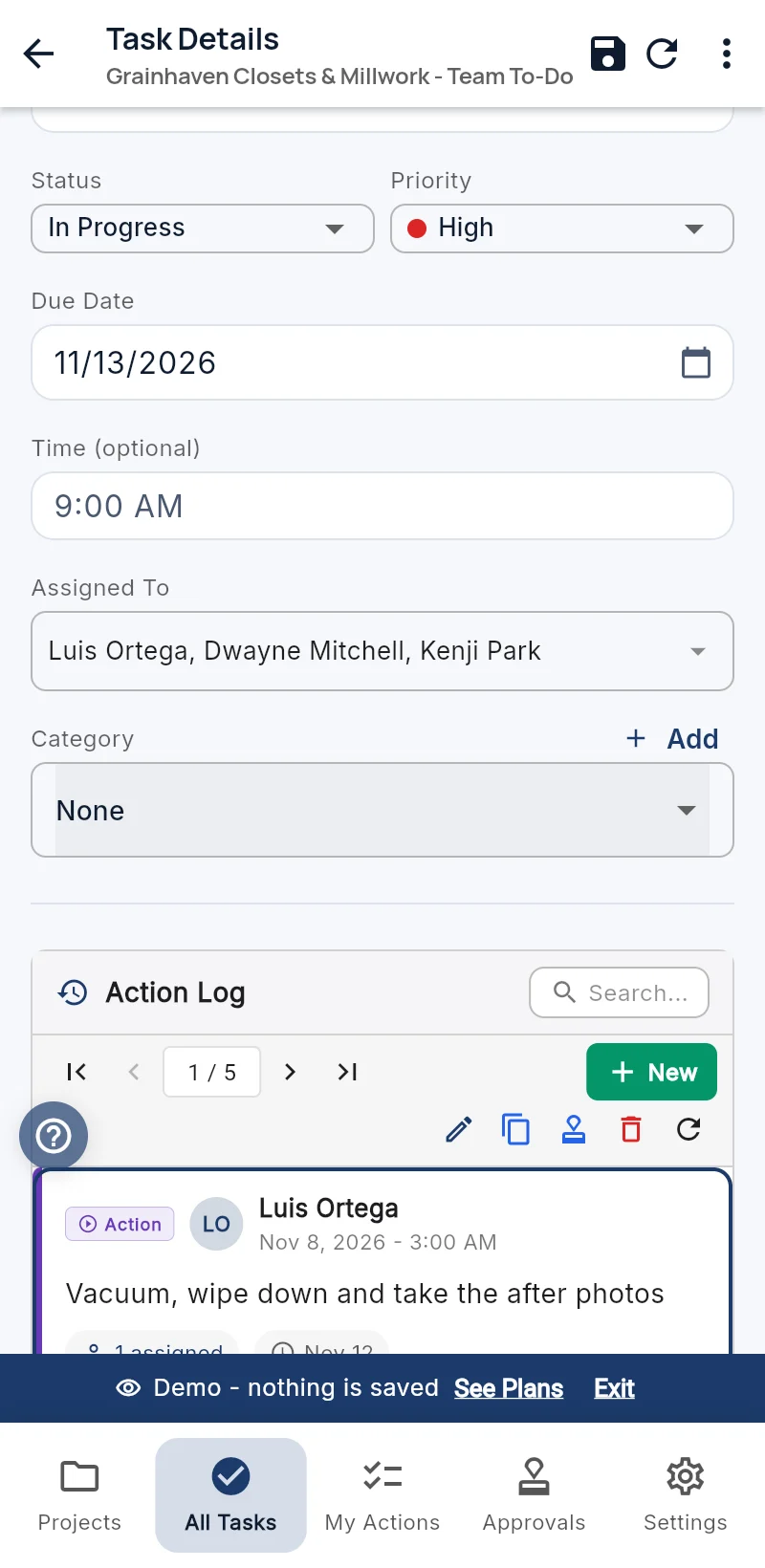
The punch list is the last things to close before the final walkthrough. Make a task for it in Team To-Do, for example "Punch list - O'Connell garage".
Open it and, in its Action Log, tap New for each item. Leave Update Note unticked, pick the person under Assign to and set the Due day.
Each item lands in that person's My Actions. When it is done they open it and tap Mark Complete, and the office sees it at once. The dashboard counts the Open punch items.
See the punch list as an installer →
7What each person sees
- Owner and admins: everything, every job and every number.
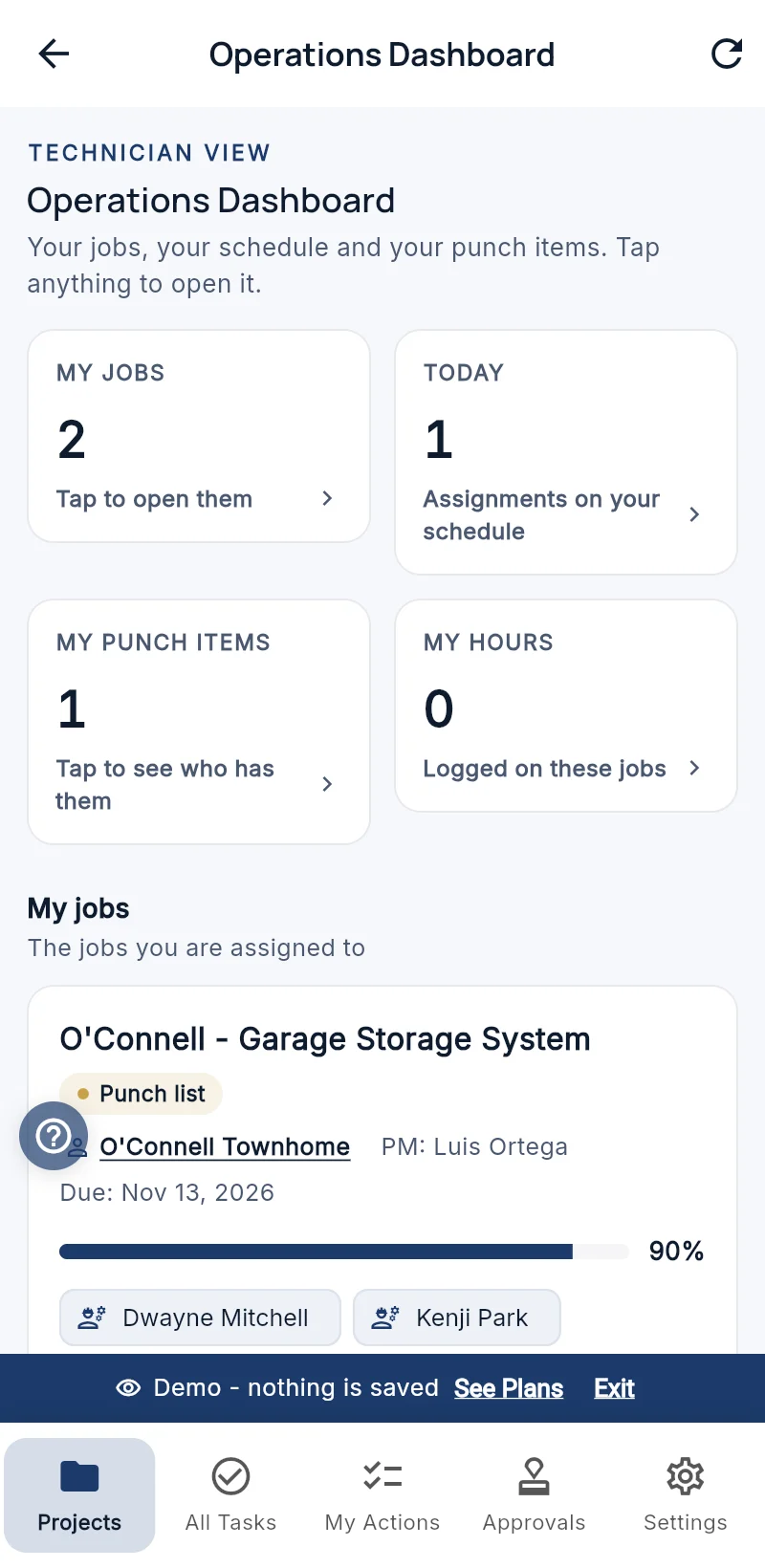
- Project manager: the jobs they manage or work on, with those jobs' budget, costs, hours and receipts, and the crew on them. They keep their quotes and invoices. They never see the pay rates table or anyone else's pay.
- Technician or installer: only the jobs they are on, those clients, their own hours and punch items. No budget, cost, price or invoice ever reaches their phone.
- Salesperson: the jobs of their own clients and only their own pay.
Your menu changes with your role too: a technician's menu is just their jobs, their clients and their tasks.
8Invoice the job
In the invoice, choose the job under Job (optional). The invoice then counts toward that job, and the job's Invoiced line on the dashboard opens its invoices.
For a deposit, send a Deposit Invoice for the percent you ask up front, then the balance when the job is done.
9Try it in the live demo
Both demo businesses run real jobs with real numbers. Open them as each person and see the difference for yourself. Nothing to install and nothing to sign up for. The demo is view-only.
Grainhaven Closets & Millwork, a closet and cabinet shop:
As the owner · As the project manager · As an installer · The one-page tour
Signal & Switch, a lighting control, shades and AV installer:
As the owner · As the project manager · As a technician · The one-page tour
Training questions
Does a technician see prices or costs?
No. The database never sends a budget, cost, price or invoice to a person with the Technician role, so it cannot show up on their phone.
Who can change a job's project manager?
Only the owner or an admin. Everyone else sees the project manager but cannot change it.
Which plan do I need?
The Operations Dashboard, roles, jobs, hours and punch lists are on every plan. Job Profitability is on the Business plan.
Is there a Spanish version?
Yes. This training and the app are in English and Spanish.